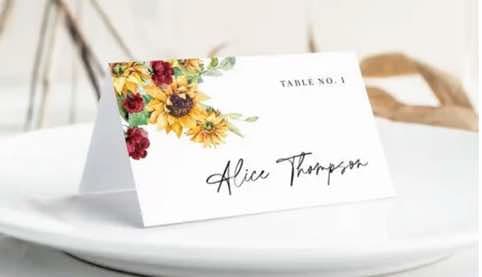
How to Make Custom Place Cards in Word: A Step-by-Step Guide
Introduction: The Art of Custom Place Cards
Creating custom place cards adds a personal touch to any event, whether it's a wedding, a formal dinner, or a corporate function. With Microsoft Word, you can design elegant and unique place cards with ease. This comprehensive guide will walk you through each step of the process, from choosing a template to printing your final design.
1. Choose the Best Template
- Open Microsoft Word and navigate to "File" > "New"
- Search for "place cards" in the template library
- Browse through available designs and select one that fits your event's theme
- If you prefer to start from scratch, choose a blank template
Pro Tip: Consider your event's style and color scheme when selecting a template. A well-chosen template can save you time and provide a professional foundation for your design.
2. Launch the Template
- Double-click your chosen template or select "Create" for a blank document
- If using a blank document, set up your page layout:
- Go to "Layout" > "Size" > "More Paper Sizes"
- Enter the dimensions for your place cards (common size is 3.5 x 2 inches)
- Adjust margins under "Layout" > "Margins" > "Custom Margins" (0.25-inch margins often work well)
3. Fill Out the Card
- If using a template, click on the placeholder text to edit guest names and details
- For a blank document, create a table to organize your layout:
- Go to "Insert" > "Table" and create a table with the desired number of rows and columns
- Right-click on the table and select "Table Properties" to set precise cell dimensions
- Use the "Home" tab to adjust font style, size, and color
- Consider using elegant serif or script fonts for formal events
- Align text centrally for a balanced look
4. Customize the Card
- Modify colors to match your event's palette using the "Font Color" and "Shape Fill" tools
- Add decorative elements like borders or patterns from the "Insert" > "Shapes" menu
- Experiment with text effects like shadows or outlines for added flair
- Customize table borders and shading under "Table Design" for a polished look
5. Insert Images and Logo
- Go to "Insert" > "Pictures" to add images from your computer
- Use "Insert" > "Icons" for built-in graphics or symbols
- If applicable, insert your event logo for a professional touch
- Resize and position images to complement the overall design
- Ensure images and graphics don't overpower the essential information
6. Select the Background
- Right-click on the card and choose "Format Background"
- Options include:
- Solid color
- Gradient
- Subtle pattern
- Textured background for a luxurious feel
- Ensure the background enhances readability of the text
- For a minimalist look, consider leaving the background white or using a very light color
7. Save Your Design
- Click "File" > "Save As" and choose a location on your computer
- Name your file descriptively, e.g., "Wedding_Place_Cards_Final"
- Select "Word Document" as the file type for easy future editing
- Consider saving a copy as a PDF to preserve formatting across different devices
8. Printing and Finishing Touches
Preview and Test
- Use "Print Preview" to ensure your design looks perfect
- Print a test page to check print quality and alignment
- Adjust printer settings as needed, selecting the highest print quality
Choose Quality Materials
- Select premium cardstock that complements your event's theme
- Consider the weight and texture of the paper for the best impression
- Options include matte, glossy, or textured cardstock
Print Your Place Cards
- Load your chosen cardstock into the printer
- Print in high quality and allow ample drying time
- Print in batches to ensure consistency and allow for any necessary adjustments
Cut and Display
- Use a paper cutter or precision knife for clean, professional edges
- If applicable, fold cards carefully along the center
- Arrange them beautifully to enhance your table settings
Frequently Asked Questions
How to make your own place card?
While we've focused on using Microsoft Word, there are other tools available for creating place cards. Canva, for example, offers a user-friendly platform with numerous templates and design options. You can explore their place card creation guide at Place Cards Creation Page. However, our Microsoft Word method offers more flexibility and control over your design.
Does Word have a template for place cards?
Yes, Microsoft Word does offer place card templates. You can find these by opening Word and searching for "place cards" in the template search bar. However, if you're looking for more variety, you can also find additional templates from third-party sources. For a detailed guide on using Word templates, check out this article on How to Make Printable Place Cards in Word.
What kind of paper do you use for place cards?
The choice of paper can significantly impact the look and feel of your place cards. Generally, cardstock is the preferred option due to its durability and professional appearance. For an in-depth look at paper options and DIY place card tips, visit Unmeasured Events' DIY Placecards Guide. Popular choices include:
- Matte cardstock: For a classic, understated look
- Glossy cardstock: For a more vibrant, eye-catching finish
- Textured cardstock: To add a touch of luxury and sophistication
- Specialty papers: Such as vellum or metallic papers for unique effects
What is the best size for place cards?
The most common size for place cards is 3.5 x 2 inches when folded, which is similar to a business card size. However, sizes can vary depending on your preference and event style. Some popular options include:
- 3.5 x 2 inches (standard)
- 4 x 3 inches (slightly larger for more information)
- 5 x 3.5 inches (for a more prominent display)
For more information on place card sizes and printing options, you can refer to Gold Image Printing's Place Cards Guide.
How do I make a card landscape in Word?
To change the orientation of your place card to landscape in Word:
- Go to the "Layout" tab
- Click on "Orientation"
- Select "Landscape"
For a more detailed guide, including how to make only certain pages landscape, visit Microsoft's Support Page on Changing Page Orientation.
How to make 4x6 cards in Word?
To create 4x6 cards in Word:
- Set your page size to 4x6 inches (Layout > Size > More Paper Sizes)
- Design your card on this custom-sized page
- For double-sided cards, use the "Book fold" layout option
For a comprehensive guide on creating custom-sized cards, which can be adapted for place cards, check out Lifewire's Guide on Making Flashcards in Word.
How to make multiple 3x5 cards in Word?
To create multiple 3x5 cards on a single page in Word:
- Set your page to landscape orientation
- Create a table with 2 columns and 2 rows (for 4 cards per page)
- Set the column width to 5 inches and row height to 3 inches
- Design your cards within each cell
For more detailed instructions, visit Process Street's Guide on Creating 3x5 Notecards in Word.
Conclusion
Creating custom place cards in Microsoft Word is a versatile and cost-effective way to add a personal touch to your event. By following this guide and exploring the additional resources provided, you can create beautiful, professional-looking place cards that will impress your guests and enhance your table settings. Remember, the key to great place cards is attention to detail and consistency with your overall event theme. Happy designing!